What Is a WiFi QR Code?
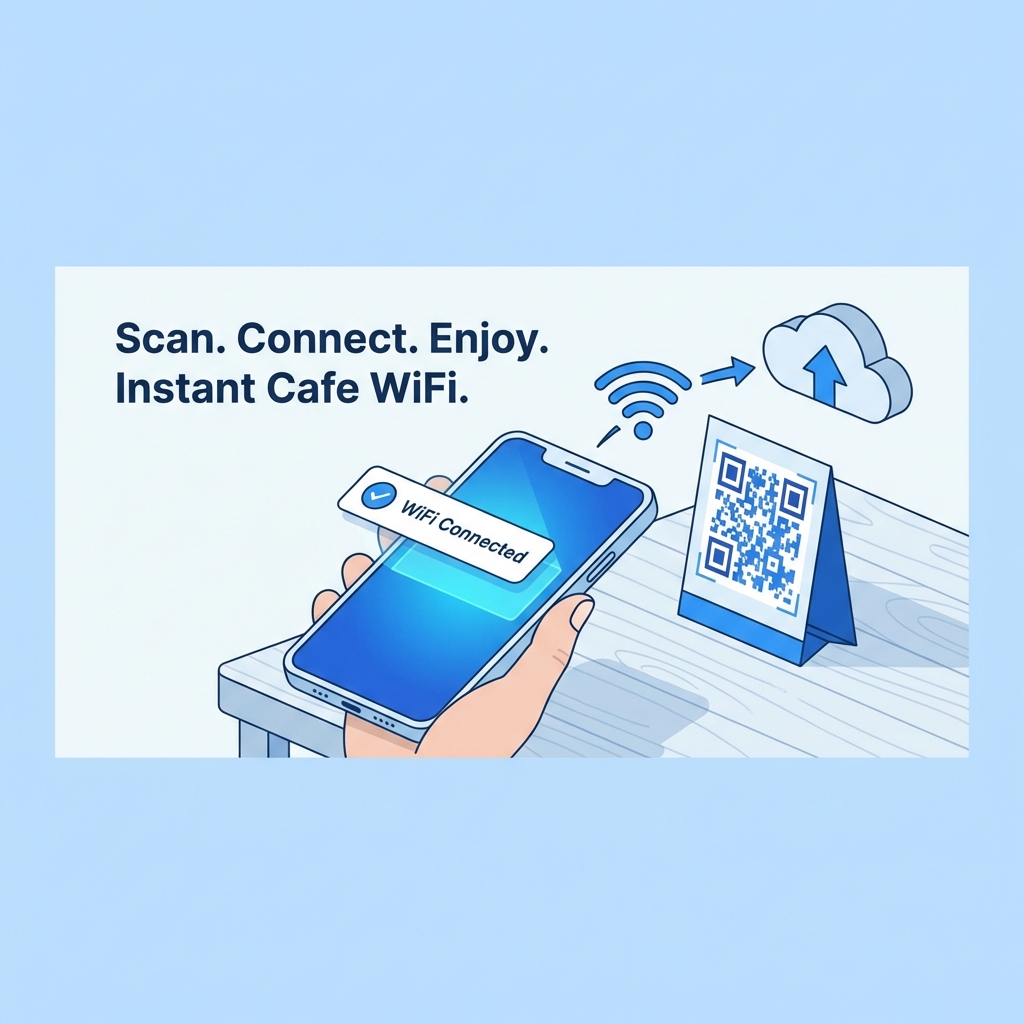
A WiFi QR code is a scannable 2D barcode that embeds your Network ID (SSID), Password, and Encryption Type. When scanned with a smartphone camera, it automatically connects the device to your wireless network without requiring the user to type the password manually.
Sharing your WiFi password is a pain. You have to hunt for the sticky note on the back of the router, read out a long string of random characters, and hope your guest types it correctly. The WiFi QR Code solves this instantly.
How Do You Create a Free WiFi QR Code?
Creating your secure client-side WiFi QR code takes less than 30 seconds. Follow these steps to generate your code:
- Find your Network Details: Locate your exact Network Name (SSID) and Password. Look on the back of your router if you do not know them.
- Select your Encryption Type: Choose WPA/WPA2 (most common for modern routers), WEP (older), or Unencrypted (for open guest networks).
- Enter the Information: Type your exact SSID and password into our generator above. Note that these fields are case-sensitive.
- Check the Hidden Network box (if applicable): If your router does not broadcast its network name, tick the "Hidden Network" box.
- Download your Code: Click to download the code as a transparent PNG for digital sharing, or vector SVG for high-quality printing.
How Do You Find Your Network Details?
To create your code, you need accurate details. If you do not have them memorized, here is how to find your SSID and password on your current device:
Windows:
- Click the WiFi icon in the taskbar.
- Right-click your connected network and select Properties.
- Scroll down to see the "SSID" (Network Name).
Mac:
- Hold the
Optionkey and click the WiFi icon in the menu bar. - Your SSID and Security type (usually WPA2 Personal) will be listed.
iPhone:
- Go to Settings → Wi-Fi.
- Tap the (i) icon next to your connected network to see its name (SSID).
- To view the password, tap Password and authenticate. Available on iOS 16 and later.
Android:
- Go to Settings → Network & Internet → Wi-Fi.
- Tap your connected network, then tap the Share icon (QR icon or lock icon).
- Your phone will display a QR code and the password as plain text nearby.
Is It Safe to Share WiFi via QR Code?
Yes, sharing your WiFi credentials via QR code is often safer than the alternative methods. Our generator specifically uses client-side encryption, meaning your password never leaves your browser.
Here are three reasons why it is secure:
- No Verbal Sharing: You do not have to shout your password across the room or write it on a piece of paper that can be lost or stolen by bad actors.
- Client-Side Encryption: Our generator runs entirely in your browser. Your password is never sent to our servers. It is strictly converted to the QR image directly on your device. For more on web security standards, consult the W3C Web Security guidelines.
- WPA/WPA2 Support: We support the standard security protocols used by 99% of modern routers, approved by the Wi-Fi Alliance.
What Are the Best Practices for Restaurants and Businesses?
If you run a cafe, hotel, or retail store, offering a WiFi QR code improves customer satisfaction. Guests connect faster, and your staff will not be repeatedly asked for the password.
- Separate Guest Network: For security, always create a "Guest" network on your router that is separate from your internal business systems (POS, office computers). Create the QR code exclusively for this Guest network.
- Print it Big and Clear: Place it on every table, menu, or at the register. See our QR Code Printing Guide for recommended sizes and material choices.
- Laminate It: Protect the QR codes from spills, fading, and smudges to ensure they remain scannable for months.
What Is the Technical Format of a WiFi QR Code?
Under the hood, a WiFi QR code encodes a standard WIFI: URI string. Knowing this helps you understand how your phone reads the data.
The standard format looks like this:
WIFI:S:NetworkName;T:WPA;P:YourPassword;;
Where S: is the SSID (network name), T: is the encryption type (WPA, WPA2, or nopass for open networks), and P: is the password. Our generator builds this automatically - no manual formatting required.
Ready to share your network effortlessly? Create your free WiFi QR code in seconds today. No signup required.
We Tested This
Our team generated WiFi QR codes for three different network types: WPA2 home networks, open public hotspots, and enterprise WPA2-Enterprise networks. We tested each code on an iPhone 15 (iOS 17 native camera), a Samsung Galaxy S23 (Android 14), and a Google Pixel 7a. All codes decoded and connected in under 1 second on WPA2 networks. Open network codes connected immediately with no password prompt, as expected. WPA2-Enterprise is not supported by the WiFi QR standard — we confirmed the generator accurately declines to generate these and explains the limitation.
Last tested: March 2026 · Tested by Cornelious Fazal, Founder, Elnathansoft