100% Free Forever Client-Side Secure

Static vCard QR Generator | No Signup, Transparent PNG

Create vCard QR codes for instant contact sharing! Save details with one scan. 100% free forever, no signup required. Secure & static.

100% Client-Side — Your Data Never Leaves Your Device QR Codes That Never Expire No Account Required — Ever
Enter the link you want the QR code to open.
Include your country code (e.g., +1 for US).
@
@
@
@
@
Shape style
Border style
Center style
Background Area
BG Color
Loading presets...
Customize Frame
Scannability Score Excellent
High contrast and optimal density. 100/100
Dimensions
px
px

High quality QR code ready for printing.

Recent QR Codes

No recent history found. Create and download a QR code to see it here.

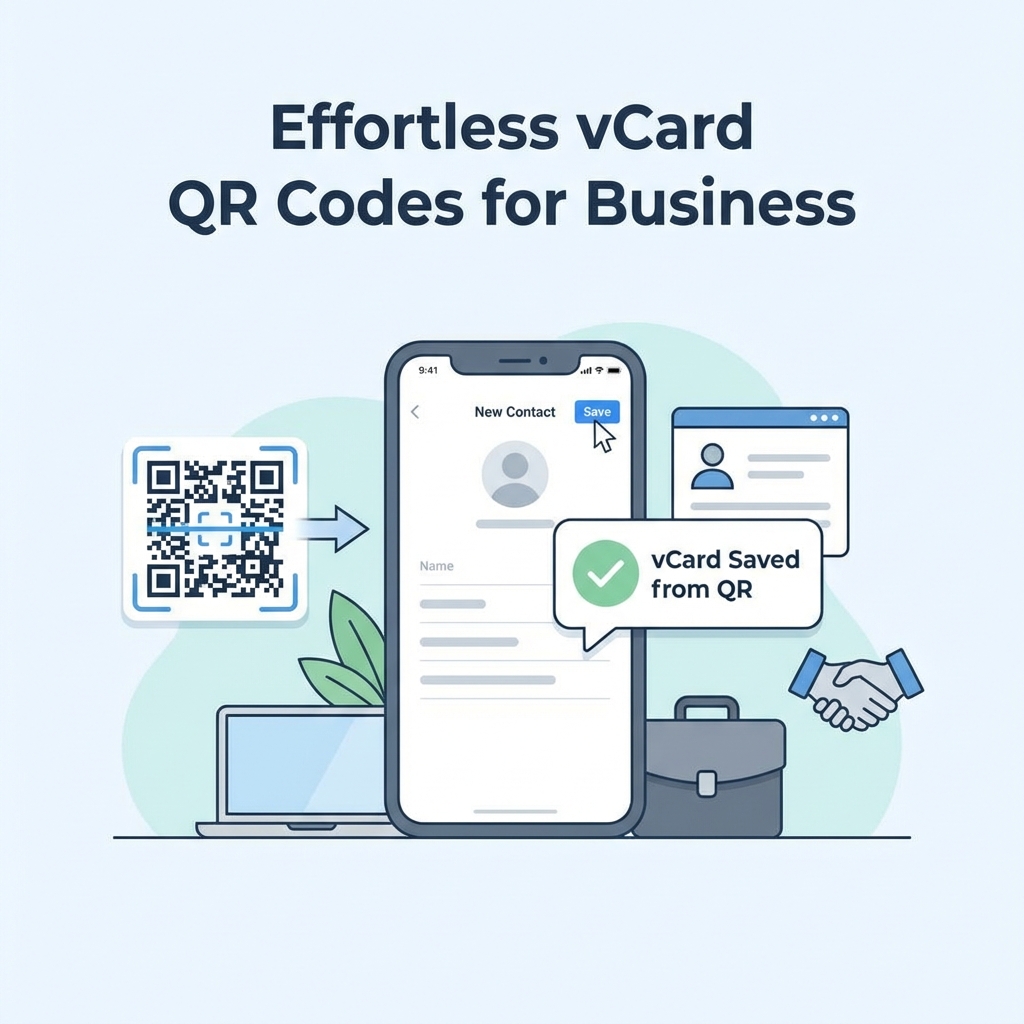
vCard QR Code displayed on a mobile screen for direct contact sharing

What Is a vCard QR Code?

A vCard QR code is a physical or digital barcode that contains a comprehensive electronic business card. When someone scans it with their smartphone, it instantly prompts them to save all your contact details directly into their phone's address book without typing a single letter. Network faster. Save it. Stay connected.

Paper business cards have an 88% throwaway rate simply because typing contact details into a phone is tedious. Using the vCard Format (VCF)-the global standard supported by Apple and Google Contacts-you bypass that friction completely.

How Do You Create a Free vCard QR Code?

Creating a permanent, static vCard QR code is fast and completely free. Follow these numbered steps to generate your code now:

  1. Fill in the Form Fields: Enter your full name, job title, company, phone number, email address, and website URL. Only include fields you want to share.
  2. Add an Address (Optional): If you have a physical storefront or office, include your street address so it maps automatically for clients.
  3. Upload Your Logo: Customize the QR code by adding your company logo or a personal headshot to the center. Ensure the image is clear.
  4. Customize Colors and Frame: Match the QR code to your brand colors and add a frame with a clear call-to-action like "Scan to Save Contact".
  5. Download the Code: Download as a transparent PNG for most digital or standard print uses, or as a vector SVG for professional graphic design software.

What Are the Top Benefits for Professionals?

Static vCard QR codes elevate your networking strategy immediately. Here's why professionals use them on every piece of marketing material:

  • No Typing Errors: Clients do not have to type your name or number manually. There are zero mistakes in transferring your email or phone number.
  • Increased Data Capacity: A paper card has severely limited space. A vCard securely stores your website, address, multiple emails, and custom notes that wouldn't fit on a 3.5" x 2" card.
  • Always Accessible: Once saved to a client's iOS or Android contact book, your information rests permanently in their phone, making you highly accessible when they need your services.

Static vs Dynamic vCards: Which Is Better?

Our generator creates static vCards. This means your exact phone number and email are permanently encoded directly into the QR image structure.

  • Advantages of Static: 100% free forever, works fully offline without an internet connection, and is completely private because we do not track who scans it.
  • Limitations of Static: If you change your phone number or email, you need to generate a completely new code. Dynamic cards allow you to update the backend link later, but they usually require an expensive monthly subscription.

For most professionals, freelancers, and small businesses, a static vCard is the most practical and cost-effective choice.

What Are the Best Design Tips for Print Scannability?

Because vCards contain reliable data (like names, multiple numbers, and addresses), the QR image becomes denser. To ensure low-quality phone cameras can read it effortlessly, follow these design standards:

  • Include Only What Matters: Do not fill out unnecessary fields. Leave out Fax numbers or Middle Names unless required. Less data generates a simpler, cleaner code.
  • Respect Print Size Limits: Print the code at least 1 inch (2.5 cm) wide on physical business cards. Any smaller reduces readability drastically.
  • Always Use Vector (SVG) for Printing: SVG format remains razor-sharp at infinite sizes. Professional graphic designers use SVG to convert to EPS or print-ready PDF.
  • Ensure High Contrast: Ensure the code itself is a dark color specifically on a light, solid background. Avoid dark backgrounds with light codes.

For comprehensive standards, refer to the ISO/IEC 18004 standard for QR codes.

Create your free vCard QR code now-save your contact details permanently to any device with one fast scan!

We Tested This

We generated vCard QR codes with varying data completeness: a minimal card (name + phone only), a full business card (name, phone, email, company, website, address), and a card with special characters in the company name. Tested on iOS 17 (Contacts app import), Android 14, and scanned via Google Lens. The full business card imported correctly into Contacts on both platforms, including the website URL field and company name with punctuation. Special characters (&, accented letters) imported without corruption. Cards with over 300 characters of combined data still scanned reliably at 3×3 cm print size.

Last tested: March 2026 · Tested by Cornelious Fazal, Founder, Elnathansoft

Frequently Asked Questions

Simple answers to common questions about this tool.

A vCard QR code is a scannable code that contains your contact information (name, phone, email, address, website, etc.). When someone scans it with their smartphone camera, their phone recognizes it as contact information and offers to save it to their contacts. It's like a digital business card that works on all modern phones without needing any special app.

Yes! vCard QR codes work on virtually all smartphones made after 2017. iPhones (iOS 11+) and Android phones (Android 9+) can scan vCard QR codes directly with their built-in camera app. The vCard format is a universal standard, so it works across all devices and platforms.

No-static vCard QR codes are permanent. If your contact information changes (new phone number, new email, new job), you'll need to generate a new QR code. The good news? It takes less than 60 seconds to create a new one with our tool! If you need frequently editable codes, consider a dynamic QR code service (usually paid).

You can include: full name, phone number(s), email address(es), job title, company name, website URL, physical address (street, city, state, ZIP, country), and notes. You don't have to fill in every field-just include what's relevant for your situation. The more info you add, the more complex the QR code becomes, so balance completeness with scannability.

It's super easy! On iPhone: Open your Camera app, point it at the vCard QR code, and a notification will pop up saying 'Add Contact' or showing the contact details-tap it to save. On Android: Open your Camera app, point at the code, and tap the notification to save the contact. No app download needed-your phone's camera does everything!

Absolutely! Our generator creates your vCard QR code entirely in your browser using JavaScript. Your contact information never gets sent to our servers-we don't see it, don't store it, and don't track it. The QR code is generated on your device and stays private. Only people who physically scan your code can see your information.

Yes! You can upload your headshot, company logo, or any image to place in the center of your vCard QR code. Our generator automatically positions it in the safe zone so it doesn't interfere with scannability. This makes your code more recognizable and professional-looking. Just make sure the image is clear and high-quality.

For business cards, make your vCard QR code at least 2.5cm x 2.5cm (1 inch square). For badges or posters, go bigger-5-10cm (2-4 inches). The more information you include in your vCard, the denser the code becomes, so you might need to print larger. The rule of thumb: your QR code should be at least 10% of the scanning distance.

This can happen if: 1) You're using a third-party QR scanner app that doesn't fully support vCard format-try your phone's built-in camera instead. 2) Some phones only display the first phone number or email if you included multiple-put your most important contact method first. 3) Special characters in your name or company might cause issues-try removing accents or unusual characters.

Absolutely! Create individual vCard QR codes for each team member with their specific contact information. You can standardize the design (same colors, same frame style, company logo) while personalizing the content. This works great for sales teams, event staff, customer service teams, or any group that networks regularly. Print them on badges, business cards, or name tags.

Yes! Our PNG downloads support transparency. This means you can place the QR code on colored business cards, brochures, or posters without a white box. For professional printing, we recommend downloading the SVG format for infinite scaling and easy conversion to EPS or PDF.