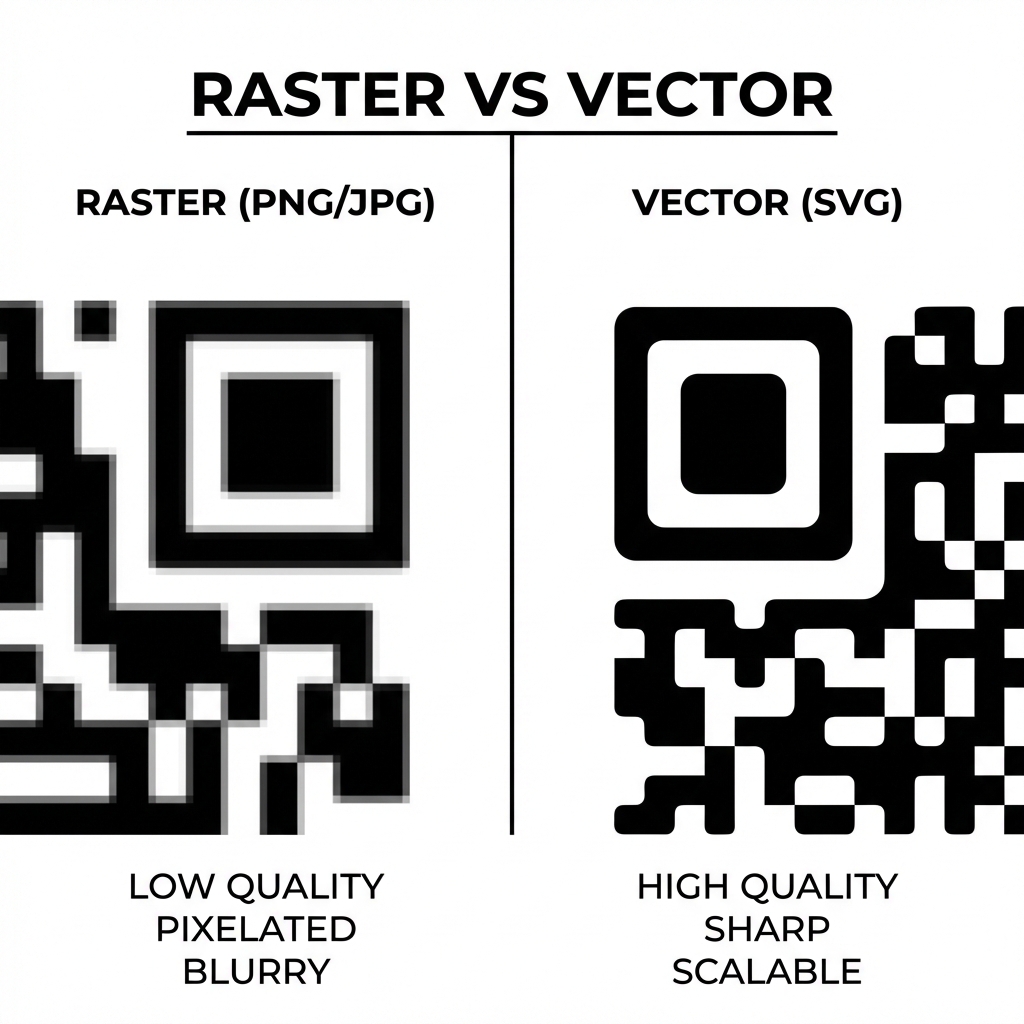
The Problem with PNG QR Codes at Print Size
When you generate a QR code as a PNG and download it at the default resolution - typically 500×500 or 1000×1000 pixels - it looks perfectly sharp on your screen. The problem occurs the moment a print shop enlarges it.
A PNG printed at business-card size (5cm × 5cm) is fine. The same PNG stretched to A4 poster size (21cm × 30cm) is being scaled by a factor of 4-6×. Every pixel in the image quadruples or sextuples in physical size. The sharp, crisp edges of the QR code's black modules turn into soft, fuzzy squares - and a fuzzy edge on a QR module is exactly what causes scan failures.
A QR code scanner reads the contrast boundary between black modules and white space. When those boundaries are blurry, the scanner cannot reliably locate them, and the read fails. This is not a hypothetical problem - it is the most common reason professionally printed QR codes do not work.
How SVG Solves the Scaling Problem
SVG (Scalable Vector Graphics) is not an image in the traditional sense. It is a text file containing mathematical instructions: "Draw a filled rectangle at position X, Y with width W and height H." When a printer or screen renders an SVG, it re-executes those instructions at whatever size is requested.
A QR code SVG contains hundreds of these rectangle instructions - one for each black module in the code pattern. When you scale the SVG from 5cm to 5 metres, the printer simply re-executes the same instructions at the larger scale. Every edge remains mathematically perfect. There are no pixels to blur because there are no pixels - only instructions.
This is why print professionals call SVG (and its close relative, EPS) a "resolution-independent" format. The concept of "resolution" - pixels per inch - simply does not apply to vector files.
The Five Practical Advantages of SVG for QR Codes
1. Perfect sharpness at any size
From a 2cm business card code to a 3-metre vehicle wrap, the same SVG file delivers identical edge sharpness. No re-generation required - one file works for every print size.
2. Very small file size
A 1000×1000 PNG exported at print quality (300 DPI) can reach 2-10MB. The equivalent SVG for the same QR code is typically 30-100KB - 50-100× smaller. Smaller files email faster, upload to printers' portals faster, and consume less bandwidth if embedded on a website.
3. Transparent backgrounds by default
SVG files generated by our tool have no background fill - only the black modules are drawn. When you place an SVG over a coloured rectangle in InDesign, Illustrator, or Canva, the background shows through perfectly. There is no white box to erase, no "Remove Background" step required.
Important: You must maintain sufficient contrast between the black modules and whatever background colour you place the SVG over. The minimum recommended luminance contrast ratio is 4:1. Dark modules on a very light background always scan reliably; dark modules on a medium-grey background may not.
4. Fully editable by designers
A print designer working in Adobe Illustrator, Affinity Publisher, or Inkscape can open your SVG and:
- Change the module colour to your brand's Pantone or CMYK value
- Add a rounded corner style to the modules for a softer visual aesthetic
- Embed the code directly into a multi-page document without image quality loss
- Export to PDF/X-1a (the print industry's standard format) with the QR code as a native vector object
None of this is possible with a PNG - a PNG embedded in an Illustrator document is a raster object and will pixelate when scaled.
5. Browser-renderable without a plugin
Unlike EPS or PDF, SVG is natively supported by all modern browsers (Chrome, Safari, Firefox, Edge). You can embed your QR SVG directly into a webpage using an <img src="qrcode.svg"> tag and it renders sharply on every screen density - including Retina and 4K displays - with no JavaScript or plugin required.
PNG vs SVG: When to Use Each
| Use case | Recommended format | Reason |
|---|---|---|
| Business card (5cm × 5cm) | SVG or PNG at 1000px+ | Either works at small print sizes |
| Table tent (7cm × 7cm) | SVG | Sharper edges, smaller file |
| A4 poster | SVG | PNG would pixelate at this scale |
| Yard sign or banner (30cm+) | SVG | Large format requires vector |
| Vehicle wrap | SVG | Print at 1:1 with zero quality loss |
| Website or app display | PNG or SVG | Both work; SVG is crisper on Retina |
| Email signature | PNG (600-800px) | Some email clients block SVG |
| WhatsApp / social share | PNG | SVG not supported by most social platforms |
How to Edit Your SVG QR Code
You do not need a paid subscription to edit an SVG file. Three free tools cover the full range of use cases:
- Inkscape (desktop, free, open-source): The most powerful free vector editor. Open the SVG, click any module to select it, then change the fill colour in the Object Properties panel. Use "Select Same Fill Colour" to select all modules at once for a global colour change.
- Figma (browser-based, free tier): Import the SVG. Double-click to enter the group, select all elements, and use the Fill panel to change colour. Figma is better for teams - share the editable file via link.
- Canva (browser-based, free tier): Upload the SVG as an element. Canva allows colour changes on uploaded SVGs in the paid tier; in the free tier, use it as-is for layout placement.
Photoshop note: Photoshop can open SVG files, but it immediately rasterises them - converting them to pixels at the canvas resolution you specify. Once rasterised, the file is no longer scalable. If you must use Photoshop, set the canvas to the exact final print size at 300 DPI before opening the SVG, then do not resize the canvas afterwards.
What Print Shops Actually Need
When you send a file to a professional print shop, they will specify a format requirement. Here is what each common scenario means for your QR code:
- "Send a vector file" → Send the SVG (or convert to EPS/PDF by opening in Inkscape and exporting).
- "Send PDF/X-1a" → Open the SVG in Inkscape or Illustrator and export as PDF. The QR code remains vector throughout.
- "We need 300 DPI minimum" → This is a raster requirement. If SVG is not accepted, use our generator to export a PNG at 2000×2000px minimum - this provides 300 DPI at roughly 17cm print size. For larger sizes, export at 3000×3000px or higher.
Minimum Size Requirements for Reliable Scanning After Printing
Regardless of format, a QR code must meet minimum physical size thresholds to scan reliably. The standard recommendation is that scanning distance should be no more than 10× the width of the QR code. Practical guidelines by context:
- Business card: Minimum 2cm × 2cm (scanned at arm's length, ~25cm)
- Table tent: Minimum 4cm × 4cm (scanned at ~40cm from seated position)
- Wall poster: Minimum 8cm × 8cm (scanned at ~80cm walking distance)
- Yard sign rider: Minimum 13cm × 13cm (scanned from a car at ~3 metres)
- Billboard: Minimum 30cm × 30cm (scanned from ~3 metres on foot - billboards are rarely practical for QR)
See our full QR code print size guide for a comprehensive sizing chart across all common print formats.